Touch Controls in Synos Cloud Gaming: Setup and Tips
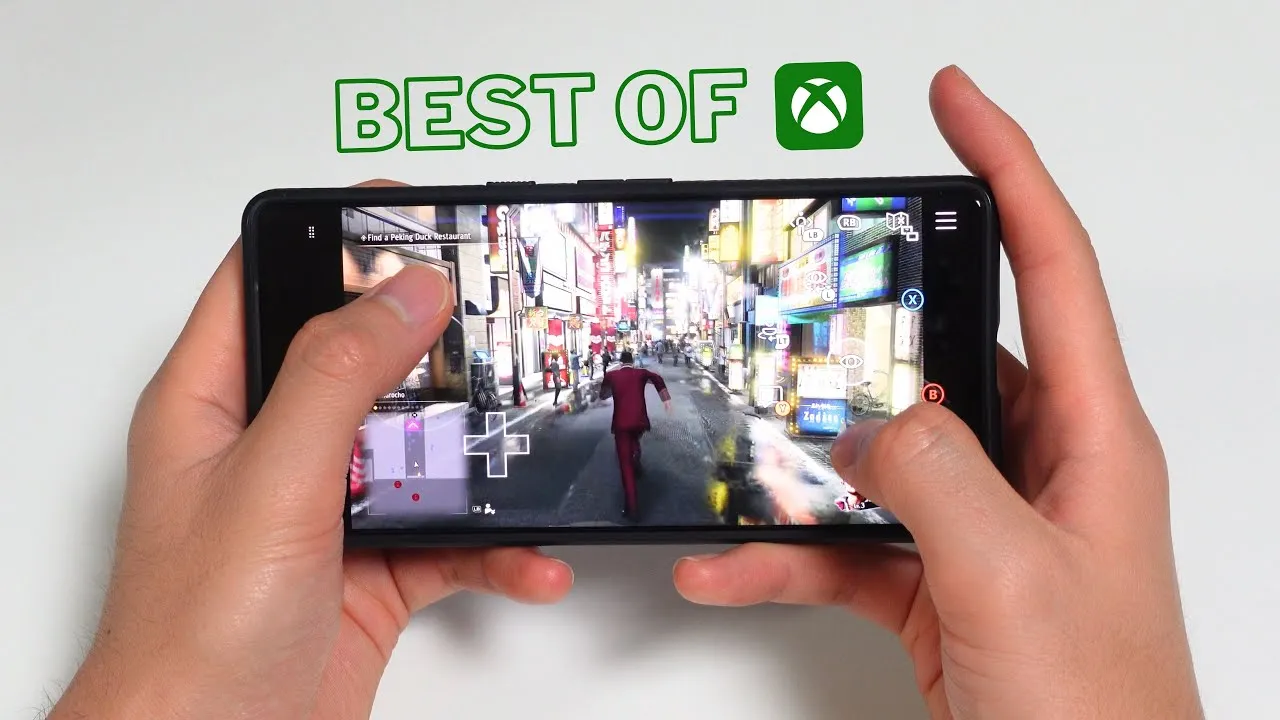
Touch controls put a virtual gamepad on your screen: sticks, buttons, and triggers drawn over the game and worked with your thumbs. They are the reason cloud gaming works anywhere with nothing but a phone, and with the right setup they are far more capable than their toy-like first impression suggests.
Most frustration with on-screen controls is a setup problem, not a skill problem. Players who adjust layout, size, and sensitivity in Synos Cloud Gaming APK to suit their hands and their games usually find touch play comfortable for long sessions, and this guide walks through those adjustments in a sensible order.
How On-Screen Controls Work
A typical layout places a movement stick under the left thumb, action buttons under the right, and camera control on the open screen area between them. Tapping, holding, and sliding map to the buttons a physical pad would provide, and the game reads them the same way.
The key difference from a real controller is feedback: there are no edges to feel, so your thumbs can drift from the centres of the controls without noticing. Good setup minimises that drift by placing controls where your thumbs naturally rest, which is why two minutes of adjustment pays off in every session that follows.
Set the Layout for Your Hands
If the game or app lets you move controls, start there. Bring the stick and buttons slightly inward and upward from the screen corners, to where your thumbs land when you hold the phone relaxed. Controls jammed into corners force stretched thumbs and sore hands; controls floating mid-screen block the action.
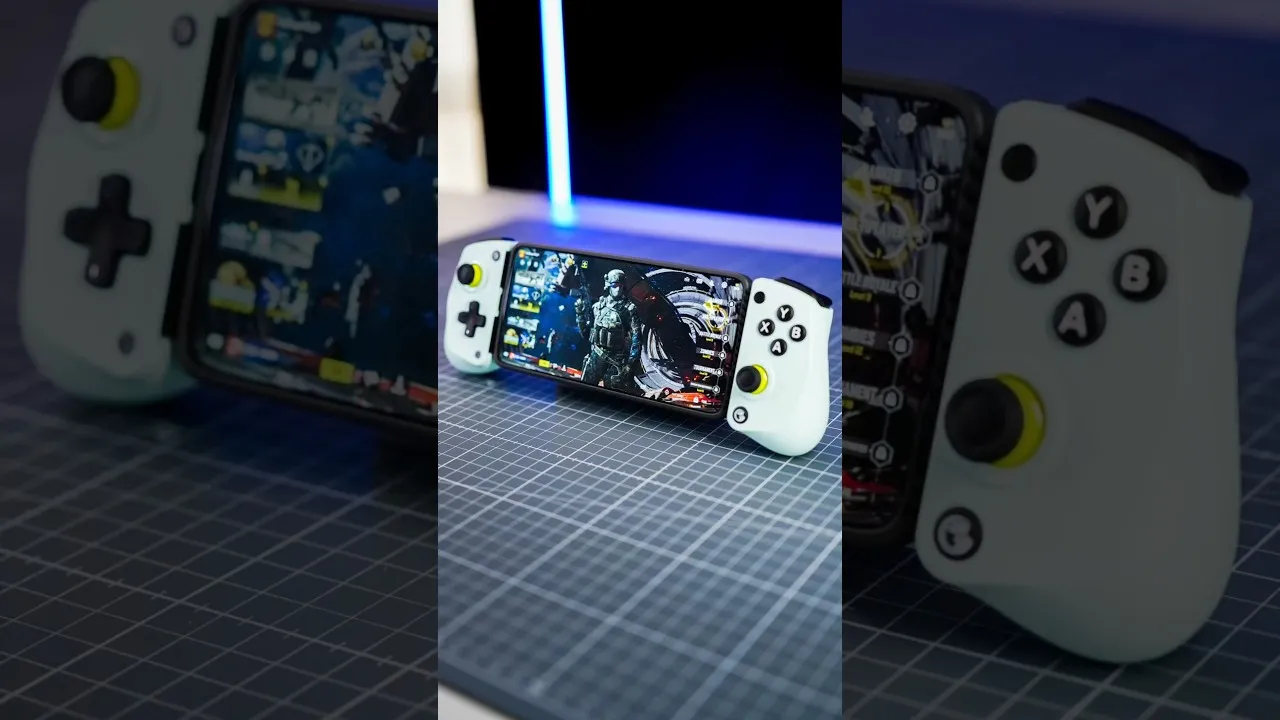
Resize generously. Buttons big enough to hit without looking are worth the screen space they cover, and many layouts allow transparency adjustments so larger controls hide less of the game. Save different layouts for different genres if the option exists, because a racing layout and a strategy layout have little in common. When a physical pad suits a game better, the options in best controllers for Synos Cloud Gaming cover every budget.
Tune Sensitivity and Response
Camera and stick sensitivity decide how far a small thumb movement turns the view. Begin lower than you think you need: a calm camera you fully control beats a fast one you constantly overshoot. Raise it in small steps across several sessions as your thumbs learn the layout.
Turn off any setting that adds smoothing or acceleration if precise aiming matters, since those features trade accuracy for softness. Then test in a safe area of the game: circle the camera, change direction suddenly, and jump between buttons quickly. Ten practice minutes in a calm space teach more than an hour of mid-mission fiddling.
Hold, Posture, and Screen Care
Comfort is a control setting too. Hold the phone with fingers supporting the back rather than gripping the edges, rest your forearms when you can, and take advantage of a stand for menu-heavy games where constant holding is unnecessary. Landscape orientation suits almost every layout, giving thumbs room and the game its natural shape.
Keep the screen clean, because grease and dust genuinely affect how slides register, and remove thick or textured screen protectors if touches feel unreliable. Dry hands track better than damp ones, a small detail that matters in summer and during tense sessions alike.
Pick Games That Suit Touch Play
Some genres are natural touch citizens: strategy, puzzle, card, and turn-based games lose nothing on glass, and story adventures with measured pacing play beautifully. Racers with simple steering and platformers with forgiving jumps also translate well with a tuned layout.
Dense shooters and complex action games ask the most of touch controls, so approach them after your layout feels automatic, and use the habits from best ways to use Synos Cloud Gaming to practise in low-stakes sessions first. There is no failure in mixing methods: touch for travel and casual play, a controller at home for the demanding titles.
Accessibility options deserve a look even if you have no specific need. Many games let you enlarge buttons beyond the standard range, add hold-to-repeat behaviour, or simplify combinations into single taps. These settings were designed for players with different abilities, but they help anyone with large hands, tired thumbs, or a phone with a smaller screen. Comfort is a legitimate reason to use every option the game offers.
Finally, expect a learning curve and plan for it kindly. Your first sessions with a new layout will feel clumsy in the way the first sessions with any controller once did. Practise in forgiving games, keep sessions short while your thumbs learn, and change only one layout detail at a time so you know what helped. Within a week or two of regular play, most players stop seeing the controls at all, which is exactly the point.
Short practice drills speed the learning more than long frustrated sessions. Spend five minutes in a safe area steering in circles, swapping between buttons in a fixed order, and opening and closing menus until the movements feel boring. Boring is the goal: once the basics no longer need your attention, your eyes stay on the game, and touch play starts to feel like a skill you own rather than a compromise you manage.
Final Thoughts
Touch controls reward a little deliberate setup: controls placed where thumbs rest, buttons sized for confidence, sensitivity tuned calmly, and games chosen to suit the method. Do that once, and Synos Cloud Gaming becomes a complete gaming setup that fits in a pocket, ready wherever you and your phone happen to be.