How to Reduce Lag in Synos Cloud Gaming

Lag in cloud gaming is the delay between your input and the action appearing on screen, and it is the single issue that most affects how a streamed game feels. A small delay is barely noticeable, but once it grows, characters feel heavy, aiming drifts, and even simple menus become annoying to use.
The encouraging part is that most lag comes from fixable local causes rather than the service itself. Players who set up Synos Cloud Gaming on a clean, well-placed home network usually see the biggest improvement from a handful of small changes, none of which require new equipment or technical skills.
Start by Measuring the Right Thing
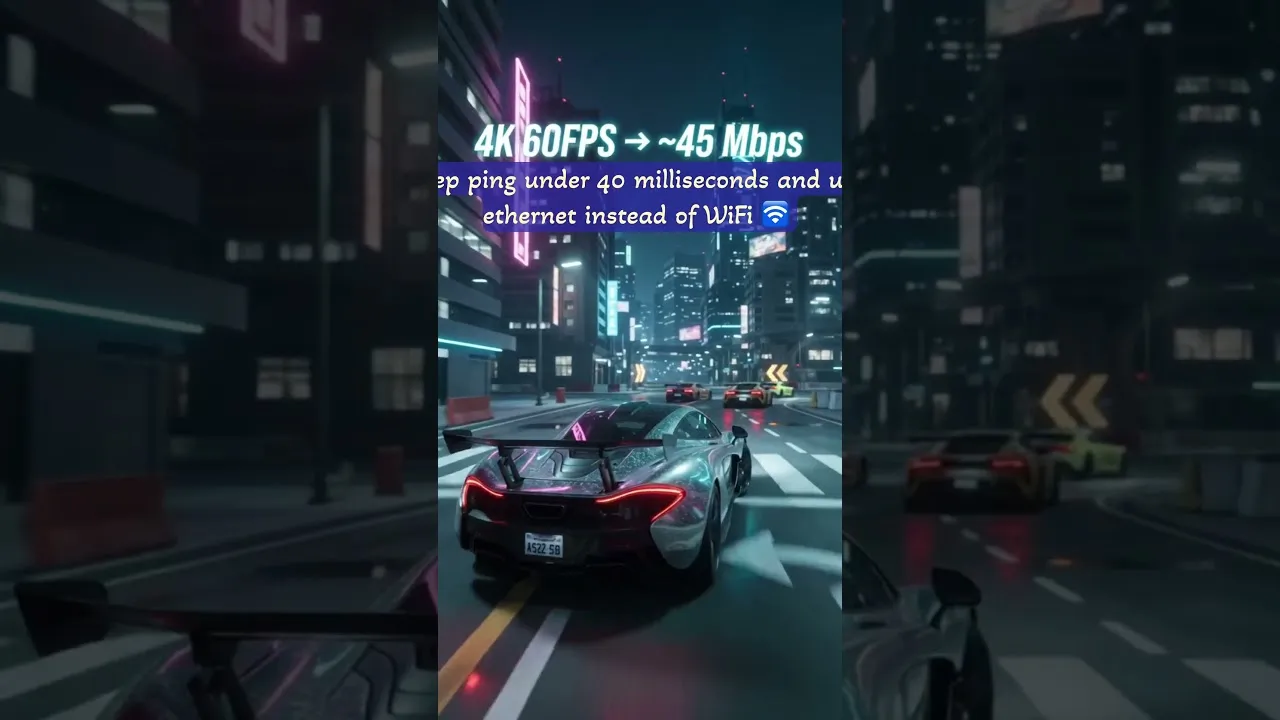
Before changing anything, run a speed test and look at the ping result, not just the download number. A fast download with a high or unstable ping still produces laggy play, because your inputs travel on that same delayed path. Test from the spot where you actually sit to play.
Compare a test near the router with a test in your usual room. If ping climbs sharply between the two, your problem is signal quality inside the home, not your internet plan. That one comparison tells you whether to work on placement and Wi-Fi habits or to look at the connection itself, and the Synos Cloud Gaming internet requirements explain the numbers in more detail.
Get Closer to the Router and Clear the Path
Wi-Fi weakens with distance and with every wall, floor, and metal object between you and the router. Playing in the same room as the router, or at least with a clear path to it, is the simplest lag fix there is. If the router sits inside a closed cabinet or behind a television, moving it into the open often helps immediately.
Where your router offers two bands, the faster short-range band is usually the better choice for gaming when you are nearby, because it carries more data with less waiting. Save the longer-range band for rooms where the fast band cannot reach reliably.
Quiet the Network While You Play
Your connection is shared with everything else in the home. A video streaming in the next room, a console downloading an update, or a phone backing up photos can all compete with your session and push latency up in bursts that feel like random lag spikes.
You do not need an empty house to play well. Pause large downloads, close cloud backups during important sessions, and avoid starting big streams on other screens at the same moment. Many routers also offer a quality-of-service setting that can prioritise gaming traffic, which is worth enabling if yours has it.
Close Background Apps and Free Up Your Phone
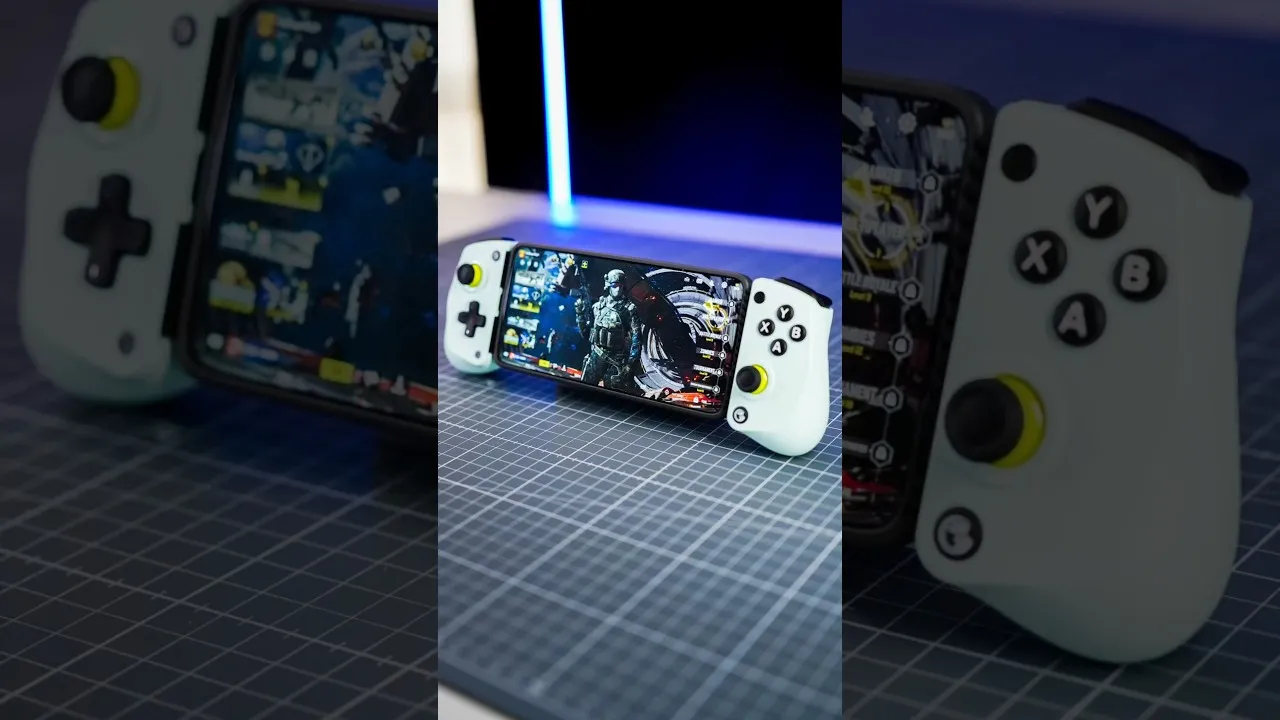
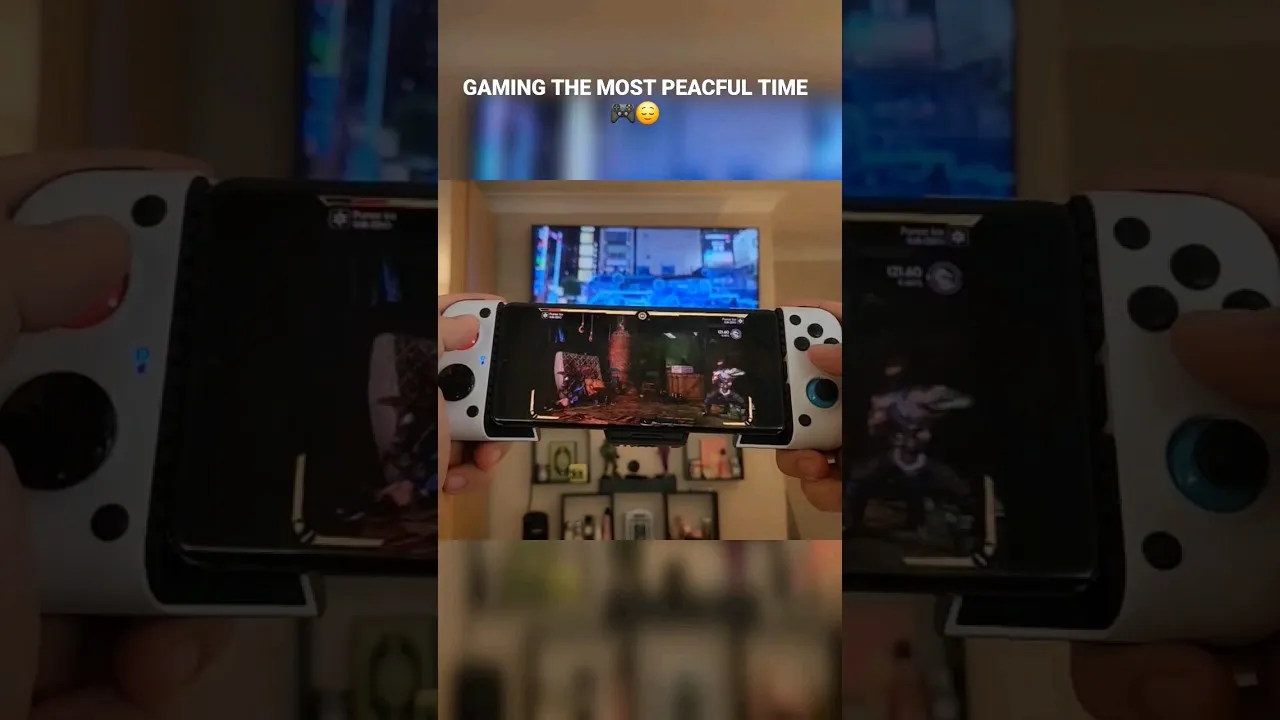
Lag is not always the network. A phone busy with updates, sync jobs, and a dozen open apps has less attention left for decoding a live stream and sending your inputs promptly. Before a session, close heavy background apps and let any pending updates finish.
Heat matters too. A phone that gets hot during long sessions may slow itself down to cool off, which shows up as uneven performance late in a session. Removing a thick case, avoiding charging while playing when the device runs warm, and taking short breaks all help keep performance steady.
Choose Settings That Favour Response
When a game or stream offers quality choices, the highest picture setting is not always the best one for feel. A slightly lower stream quality that your connection holds easily will respond better than a maximum setting that keeps straining the network and dropping frames.
If lag appears only in one title or at one time of day, note the pattern before changing everything. When the basic fixes here do not help, work through the Synos Cloud Gaming not working common problems and fixes step by step, since persistent lag sometimes points to an account, app, or device issue instead.
Keep a simple order when troubleshooting so you do not chase ghosts. Fix the signal first, then the shared traffic, then the phone, then the settings, testing with a short session after each single change. Players who change five things at once often fix the problem without learning which change mattered, and the lag mysteriously returns weeks later with no clue where to start.
It also helps to judge lag against the right expectations. A faint delay in a menu is normal in streamed play and not worth an evening of tuning. What you are hunting is the delay that changes outcomes: missed jumps, late brakes, shots that land behind the target. When that kind of lag is gone, stop tuning and play. Chasing perfection past that point costs more enjoyment than it returns, and a stable, predictable small delay is something every player adapts to within a session or two.
One last habit ties everything together: play your first session after any change in a game you know well. Familiar timing makes new delay obvious, while an unfamiliar game hides it behind learning. Keep notes for a few days if your lag comes and goes, because a written pattern of times and conditions solves in one evening what random tweaking cannot solve in a month.
Final Thoughts
Reducing lag is mostly about removing delays you control: a cleaner Wi-Fi path, a quieter network, a phone with room to breathe, and settings matched to your real connection. Change one thing at a time and test again, so you learn what actually helped. For most players, those basics turn a floaty, frustrating session into one that feels direct and responsive.