How to Play Synos Cloud Gaming on a TV
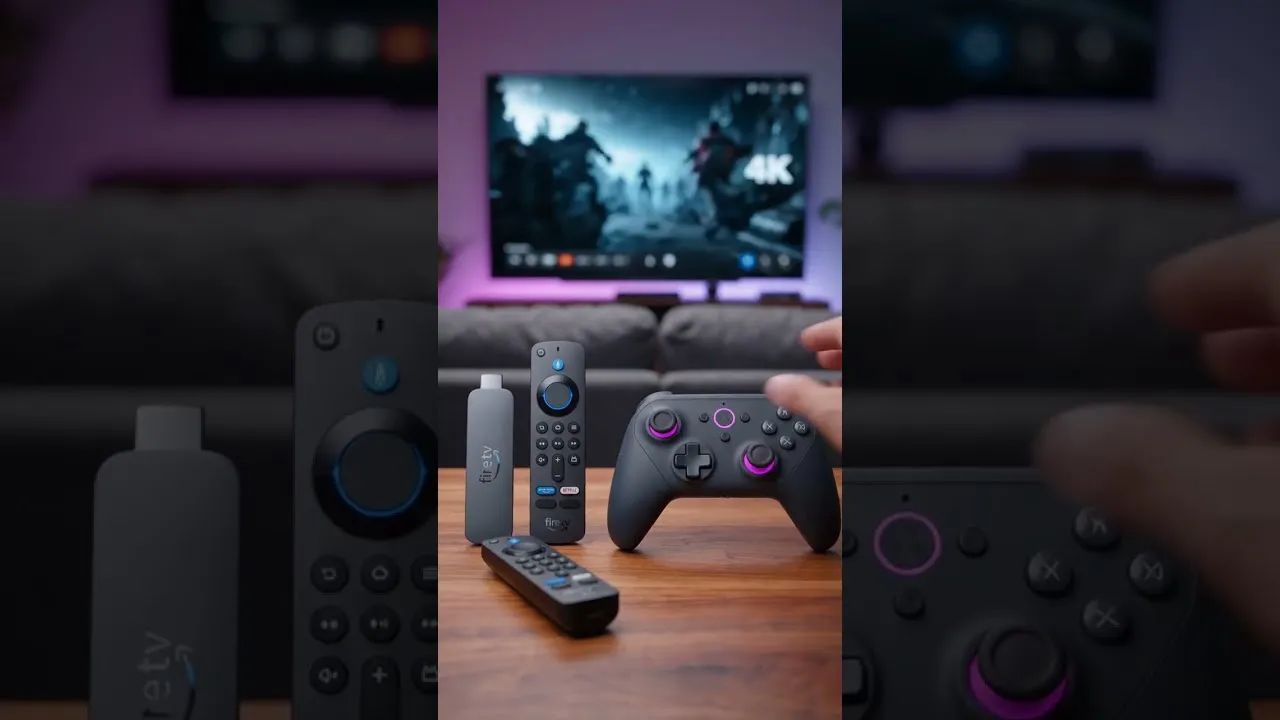
Playing on a TV takes a phone-based cloud gaming setup and turns it into a living-room experience: a bigger picture, better sound, and room for other people to watch or join in. Because the heavy work happens on remote servers, your phone mainly needs a reliable way to get the picture onto the big screen.
There are several routes from handset to television, and the right one depends on the TV and phone you already own. Whichever method you choose, Synos Cloud Gaming for Android sessions on TV reward a little setup time: a stable connection, a paired controller, and the TV's low-delay picture mode make the difference between a novelty and a setup you will use every week.
Option One: Cast or Mirror Your Phone
Wireless casting is the simplest starting point. Many Android phones can mirror their screen to a smart TV or streaming stick on the same Wi-Fi network with a cast or screen-share option in the quick settings panel. Open the app, start the mirror, and your game appears on the TV.
Casting is convenient but adds a little delay, because the phone sends the picture onward to the TV. It suits slower-paced games, turn-based titles, and casual sessions very well. For fast action, keep expectations modest and test with a game you know well so you can judge the delay honestly before committing to a long session.
Option Two: Connect With a Cable
A wired connection is the low-lag favourite. Phones that support video output over their charging port can connect to a TV with a suitable USB-C to HDMI adapter or cable, giving a direct picture with minimal delay and no dependence on Wi-Fi quality between phone and screen.
Not every phone supports video output, so check your model first; the Synos Cloud Gaming device compatibility guide is a good place to confirm what your device can do. A cable also keeps the phone in one place, which pairs naturally with a Bluetooth controller and a charger, since big-screen sessions can run long and drain the battery.
Set the TV for Gaming
Most televisions add image processing that looks great for films but adds delay to games. Switch the input you are using to its Game picture mode, which turns much of that processing off and makes controls feel noticeably sharper. This single setting is the most common fix when TV play feels sluggish.
While you are in the settings, check that the picture fills the screen correctly without cutting off the edges of the game interface. If the stream looks soft, remember the TV is showing a phone-sized stream on a much larger panel, so sitting at a normal viewing distance helps more than standing close to inspect pixels.
Pair a Controller and Sort the Sound
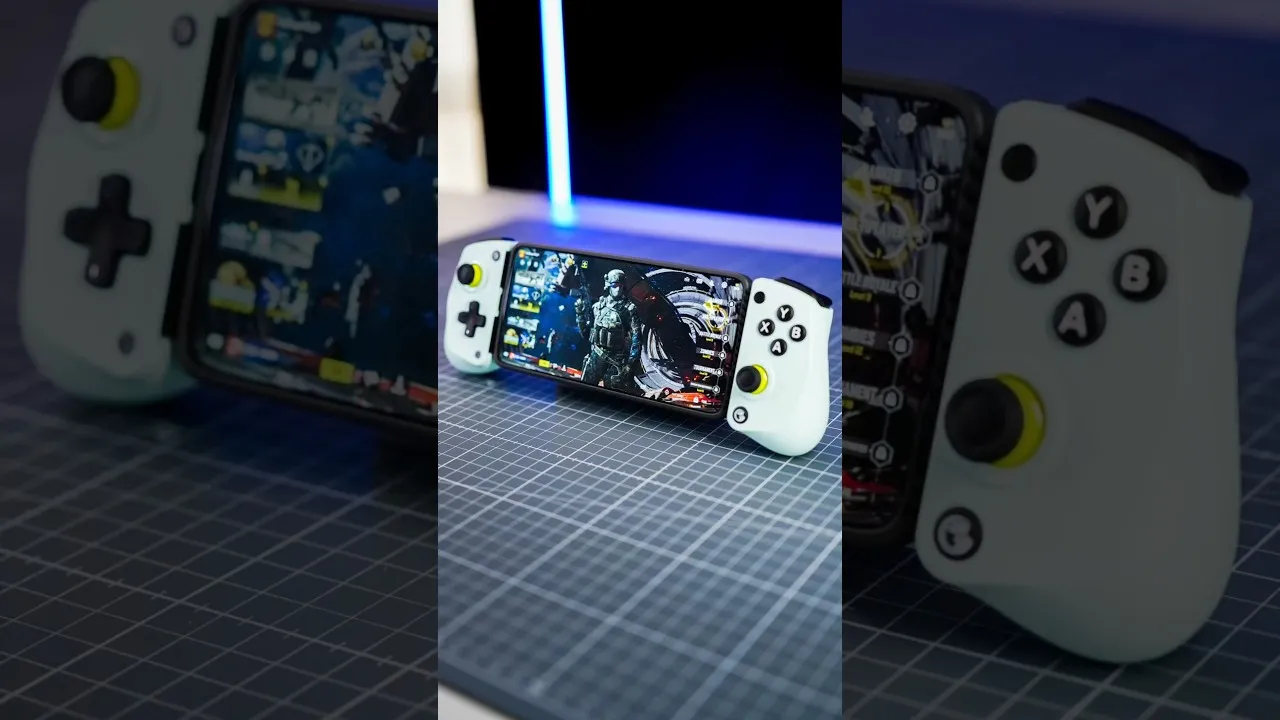
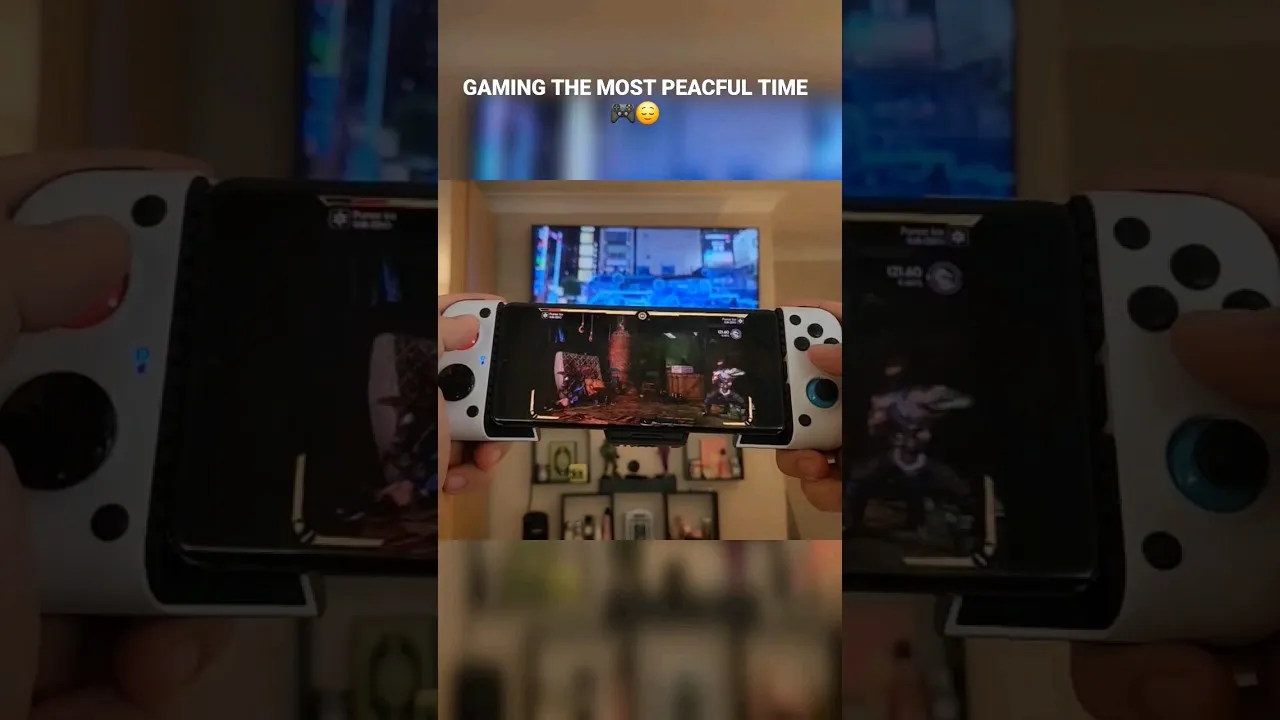
TV play and touch controls do not mix, so pair a Bluetooth gamepad with the phone before you settle on the sofa. Test the sticks and buttons from your actual seat, since distance and obstacles can affect a weak Bluetooth connection. A controller turns the setup into something that feels like a console for everyone in the room.
Sound deserves a quick check as well. Route audio through the TV speakers or a soundbar for the full effect, and confirm there is no echo or double audio from the phone. Once picture, controls, and sound line up, the best games to play on Synos Cloud Gaming are natural first picks for the big screen, especially racers and adventures that show off scale.
Keep the Connection Strong
The stream still travels over your home network, so the usual rules apply with extra force: a TV session shows every network wobble on a large screen. Play on your strongest Wi-Fi band, keep the router path clear, and avoid competing downloads during play.
If your phone supports it, keeping the phone plugged in during long sessions prevents battery-saving behaviour from interrupting the stream. A short test session before friends arrive saves embarrassment and gives you time to fix the one cable or setting that always seems to need attention.
Think about seating and light while you are setting up. A TV session feels best when the screen is at eye level from the sofa and strong daylight or a lamp is not reflecting off the panel. If your room is bright, a small shift of seating or closing a blind during play does more for picture clarity than any menu setting. Keep the controller charger and a spare cable within reach of the sofa too, so small needs do not break the session.
Finally, make the setup easy to repeat. The best TV arrangement is the one you can rebuild in two minutes: same input, same picture mode, controller stored in the same place. If guests have to watch you dig through menus and cables, the big screen becomes an event instead of a habit. Leave a note of your working settings inside the TV stand if it helps, and game night becomes something anyone in the house can start.
Final Thoughts
Playing Synos Cloud Gaming on a TV is mostly about three things: getting the picture across by casting or cable, switching the TV into its game mode, and pairing a proper controller. Do those once, and your phone becomes a small cloud console for the whole room, with the big screen doing justice to the games you already enjoy.