How to Fix a Blurry Stream in Synos Cloud Gaming
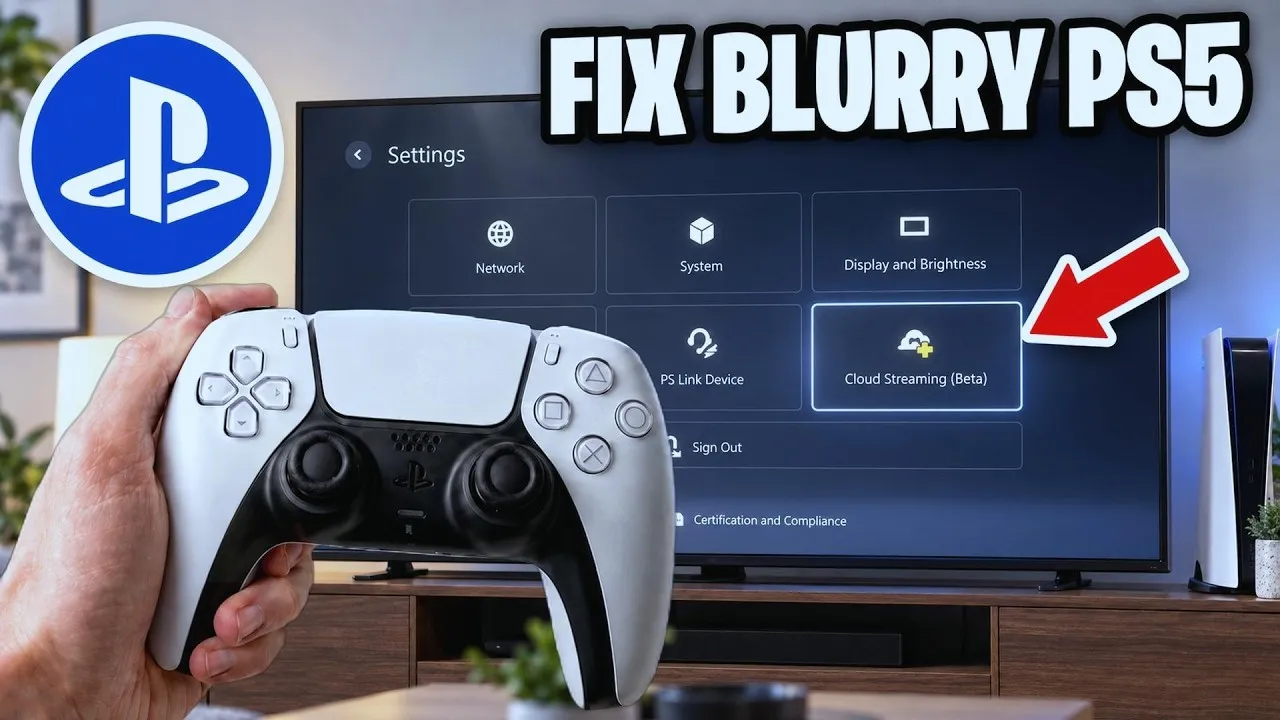
A blurry stream happens when the service lowers picture quality to keep the game moving, or when the picture it sends gets degraded on the way to your phone. The image may look soft all the time, or sharpen and blur in waves as conditions change during the session.
Blur is usually a symptom, not a fault, and it responds to methodical fixes. The Synos Cloud Gaming app adjusts quality to protect smooth play, so your job is to give it a connection and settings that let it stay sharp. Work through the causes below in order, testing briefly after each change.
Understand Why the Stream Goes Soft
Cloud streams protect motion first. When the network cannot carry the full picture, the service reduces detail so the game keeps responding instead of freezing. That trade is correct, but it tells you where to look: a blurry picture usually means the connection is short of steady bandwidth at that moment.
Blur can also arrive in pulses. If the picture sharpens during quiet scenes and softens when action speeds up, the stream is riding the edge of what your network can carry. Constant uniform softness, on the other hand, often points to a quality setting, a small source picture stretched on a big screen, or a display issue on the device itself.
Give the Stream More Network Room
Start where most blur starts: the connection. Move closer to the router, use the faster Wi-Fi band when you are in range, and pause other heavy traffic such as large downloads and high-quality video streams elsewhere in the home. Retest in the same game scene so the comparison is fair.
Many of the steps in how to reduce lag in Synos Cloud Gaming sharpen the picture too, because lag and blur share the same root cause: a connection working at its limit. A connection with comfortable headroom delivers both responsive controls and a stable, detailed image.
Check Quality Settings Before Anything Else
If a game or the app offers stream quality options, confirm you are not locked to a low setting chosen during a bad first session. Raise the quality one step, play for a few minutes, and watch whether the picture holds or falls back. A setting your network can hold steadily looks better than a higher setting that collapses every minute.
Also check the phone itself. A very low screen brightness, an aggressive battery-saver mode, or a data-saver feature that limits background and foreground traffic can all soften or restrict the stream. Disable data saving for your session and plug in if the battery is low, since some phones reduce performance to stretch the last charge.
Match the Screen to the Stream
A stream that looks crisp on the phone can look soft on a television simply because the same picture is spread across a much bigger panel. Sit at a normal viewing distance, use the TV's game picture mode, and avoid digital zoom or stretch modes that enlarge the picture beyond its natural size.
On the phone, keep expectations realistic in bright sunlight or with a dirty screen protector, both of which wash out detail. A matte or worn protector is a surprisingly common reason a stream looks dull even when the connection is fine.
When Blur Points to a Bigger Problem
If the picture never sharpens on any network, at any setting, something else is wrong: an overloaded home connection at peak hours, an old router struggling with a modern stream, or an app issue that needs a clean reinstall. Test on a different network, such as a friend's Wi-Fi, to divide the problem in half.
Work through the Synos Cloud Gaming not working common problems and fixes if the blur comes with freezes, disconnects, or error messages. Those combinations suggest a broader fault, and fixing that fault usually restores the picture as well.
Temperature and time can explain a picture that degrades the longer you play. A phone that grows hot may reduce its performance, and a household network grows busier as the evening fills with other people's streams and downloads. If your first ten minutes are sharp and the softness creeps in later, note when it starts. A pattern tied to the clock points at household congestion, while a pattern tied to session length points at the device asking for a cooler room or a short rest.
When you report or search for help with a blur problem, describe it precisely: constant softness, waves of blur, or softness only in fast scenes. Each pattern has a different likely cause, and precise descriptions get useful answers faster. Screenshots rarely capture it well because a still frame can look fine, so note the game, the scene, and what else was running on the network at the time. That small record turns a vague complaint into a fixable diagnosis.
While you tune, keep the phone's own house in order. Restart the app between major tests so each judgement is clean, and avoid stacking a new router position, a new quality setting, and a new room into one trial. Blur that survives a strong test on a different network, in a different building, is telling you the problem rides with the device or the account, and that is valuable knowledge rather than failure.
Final Thoughts
Fixing a blurry stream is mostly about headroom: a connection comfortably ahead of the stream's needs, sensible quality settings, and a screen matched to the picture. Change one variable at a time and judge the same scene again. For most players, the image sharpens quickly once the network stops working at its limit, and it stays sharp for the whole session.